Surface Overlay
A surface is the texture of a mesh. That could be the screen of a TV, a monitor, a billboard, a painting. A surface overlay replaces that texture with live content rendered by CEF, the same web engine that hosts Web UIs. Instead of a static image, the mesh shows a web page, which could be a video, a dashboard, an embedded web app or anything else a browser can render.
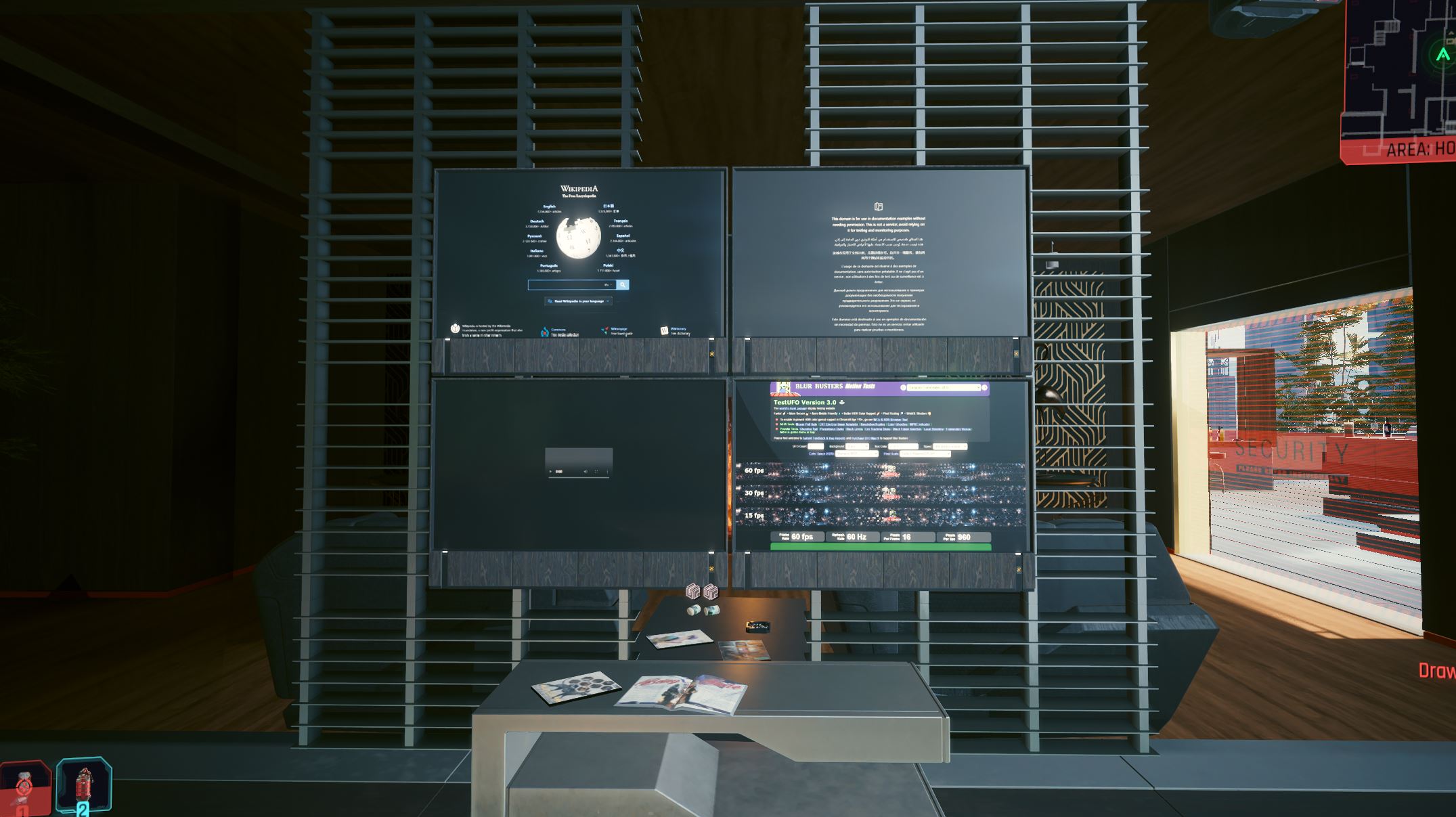
The API is split into two parts:
- A surface selects where the content goes. It is an entity in the world plus the name of the mesh component on it
- A provider is the browser that produces the content. It keeps track of the URL, resolution and frame rate
Note
Currently only entity mesh components can be used as surfaces. A future update will support
selecting worldMeshNode styled surfaces for replacement
You bind a provider to a surface to make the surface show the provider's page. One provider can supply several surfaces at once, so the same page can appear on a row of monitors from a single browser.
Input is not forwarded yet
A surface overlay is currently "display-only". Input is not forwarded right now.
The only interaction available today is navigating an existing dynamic surface
to another URL with re.Ui.NavigateOverlayProvider
This is subject to change in a future update!
Finding a surface
You need two values to address a surface, the identity of the entity in the client's game world and the name of the mesh component on it. Both come from the Surface Picker, a client-side developer tool reached through the console's Tools → Rendering -> Surface Picker menu.
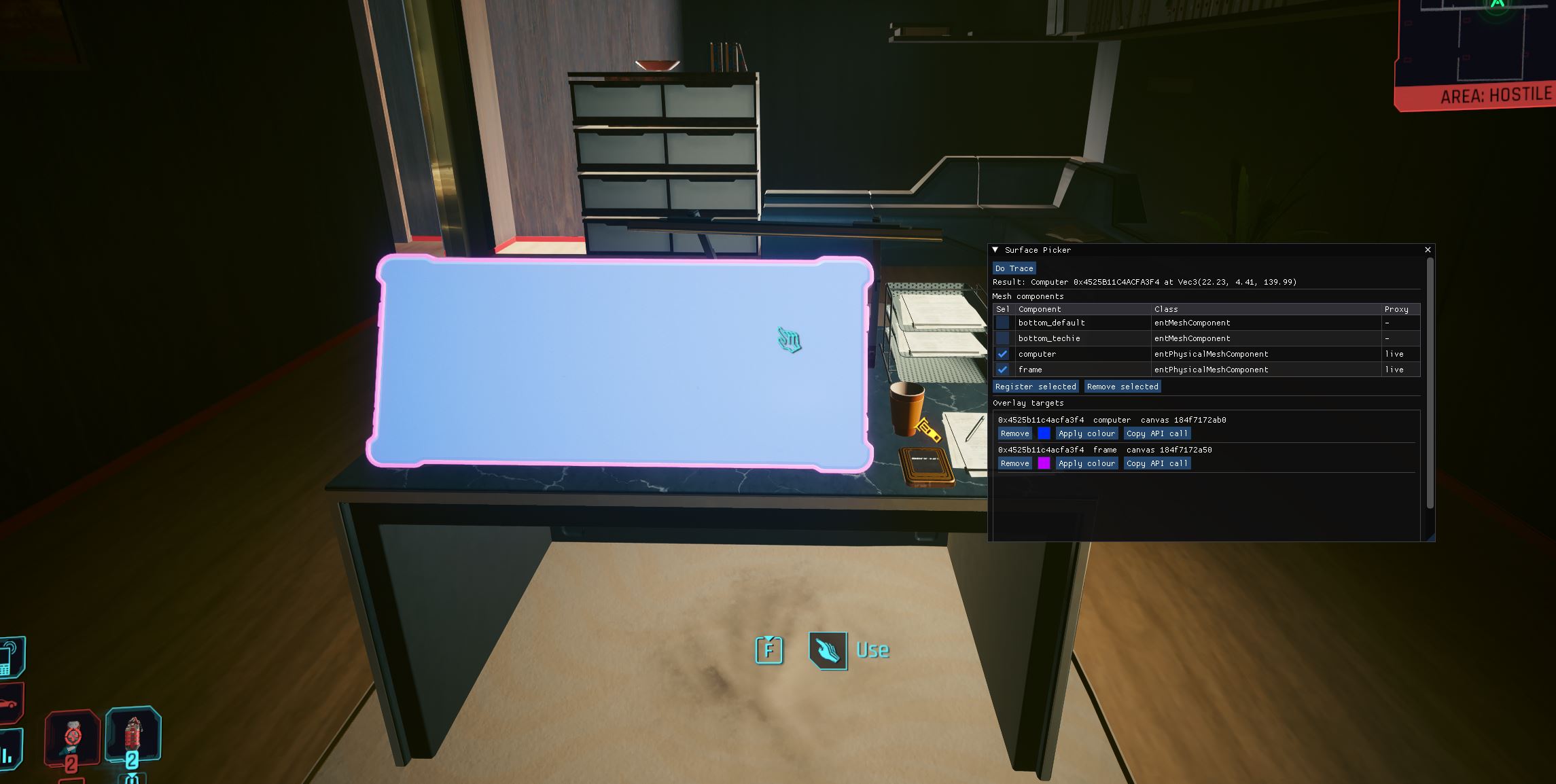
Point the camera at the object you want to target and press Do Trace. The picker reports the class and identity of whatever it hit, then lists every mesh component on that entity with its class name and whether it currently renders:
- The Component column is the name you pass to
CreateSurfaceOverlay - The checkbox in the Sel column selects the component for the two buttons below the table. Register selected turns the component into an overlay target so you can preview it, Remove selected drops it again
- The Copy API call button creates and stores the required API call in your clipboard for convenient pasting into your code editor
The Overlay targets list at the bottom shows every surface that is
currently registered, its identity, its component and whether it is owned
by CEF. Targets are marked [CEF] once a provider is attached tp them, and those
cannot be removed from the picker.
Info
Not all identities are "stable" across restarts. Static entities like the computer monitor
in the example are, but if you replace a surface on a vehicle for example, make sure to resolve
the dynamic ent.EntityId every time you apply the overlay
Creating and binding
Create the surface first, then the provider, then bind them:
const ulong identity = 0x7F314E8F10B6BCB2; // from the Surface Picker

var surface = re.Ui.CreateSurfaceOverlay(identity, new CName("tv"));
var provider = re.Ui.CreateOverlayProvider(
    "https://example.com",
    1280,
    720,
    true
);

if (surface == 0 || provider == 0)
{
    Console.WriteLine("Surface overlay could not be created");
    return;
}

re.Ui.BindOverlayProviderToSurface(provider, surface);
Both creation calls return a handle, or 0 on failure. Failures are logged,
so check the client log when a surface doesn't change.
Surfaces
re.Ui.CreateSurfaceOverlay(identity, component) registers a surface and
returns its handle. The canvas starts as a placeholder until a provider is
bound to it, so a registered surface with no provider shows a debug pattern
rather than the original texture.
- Asking for the same entity and component again returns the same handle and bumps a reference count. Release it once for every create, or the surface stays registered
- Passing an empty component name targets every mesh component on the entity
re.Ui.ReleaseSurfaceOverlay(surface)unregisters it. The mesh goes back to its original texture
Providers
re.Ui.CreateOverlayProvider(url, width, height, sixty_fps) starts a
browser and returns its handle.
urlmust be anhttps://URLwidthandheightare the canvas resolution. The surface is rendered at this size, up to 8192 pixels per axis. A 1280×720 or 1920×1080 canvas is a good default for a screen, oversizing costs memory for nothingsixty_fpspicks the frame rate.truerenders at 60 fps,falseat 30 fps. Use 30 for static pages and 60 for video- Audio the page plays is spatialized at the surface, so a video's sound comes out of the object you bound it to rather than "the player's head"
re.Ui.ReleaseOverlayProvider(provider) unbinds it from every surface it
was supplying and closes the browser.
Binding
re.Ui.BindOverlayProviderToSurface(provider, surface) connects the two
and makes the surface show the provider's page. It resizes the surface
canvas to the provider's resolution.
- A surface can have one provider at a time. Binding a second provider to an already bound surface fails
- A provider can supply several surfaces at once. Every surface bound to it shows the same page at the same resolution
re.Ui.UnbindOverlayProviderFromSurface(provider, surface)detaches one surface and returns it to its placeholder. The provider keeps running
Changing the page
re.Ui.NavigateOverlayProvider(provider, url) points an existing provider
at a different page.
The same https:// restriction applies. The call returns false if the
provider is unknown or the URL is rejected. Navigating does not resize the
canvas, so the new page is fitted into the existing surface resolution.
Ownership and lifetime
Surface overlays belong to the bundle that created them. That has three consequences:
- Only the owner can interact with them. Release, bind, unbind and navigate
all verify that the calling bundle created the handle. Another bundle's
handle returns
false, so handles cannot be hijacked or released by accident - Unloading the bundle cleans up after it. When your client-side component unloads, every provider and surface it still owns is released automatically. Surfaces return to their original texture and browsers are closed. You do not need to undo them by hand on unload, though releasing explicitly as soon as you are done is still better. A "leaked" provider holds one of the limited slots
Limits
Each client enforces the following:
| Limit | Value | Behaviour when exceeded |
|---|---|---|
| Overlay providers | 16 at a time | Creating another returns 0 |
| Provider dimension | 8192 pixels per axis | Creating another returns 0 |
| Registered surfaces | Shared canvas pool, 32 entries | Registering or binding another returns 0 |
Sixteen browsers on one client is a lot. Each one has its own renderer process, memory footprint and CPU cost, so try to keep it to a minimum. Prefer one provider bound to many surfaces over one provider per surface, and drop providers you no longer need.
Because surface canvases come out of a shared pool, a bundle that registers many surfaces can leave later registrations from any bundle failing. The picker's Overlay targets list is the quickest way to find out what is currently registered.
Content and caching
The page runs in the same sandboxed browser environment as ReUi. It can load remote content and use the usual web platform features, and its audio is routed into the game world.
Overlay content is cached per server, separately from your bundle's
ReUi and separately from other servers. Cookies, localStorage and the
HTTP cache therefore persist between sessions on the same server and do not
leak into another.